How To Download YouTube Videos

Downloading YouTube videos is quick and easy. Follow the 3 simple steps below to save any YouTube video to your device in your preferred quality — no sign-up or software required.

1

Paste the YouTube Video URL

Go to YouTube and copy the URL of the video you want to download. Come back to our homepage and paste the link into the input field. Then click the "Load Video" button. The tool will fetch the video information automatically.


Step 1: Paste YouTube video URL into the input field and click Load Video
2

Select Video Quality and Download

Once the video is loaded, you'll see a preview along with a quality dropdown. Choose from available options — 360p, 480p, 720p, or 1080p MP4. Pick the quality that suits your needs, then click the "Download Video" button to start processing.

Step 2: Select video quality from dropdown (360p, 480p, 720p, 1080p) and click Download Video
3

Download Your Video

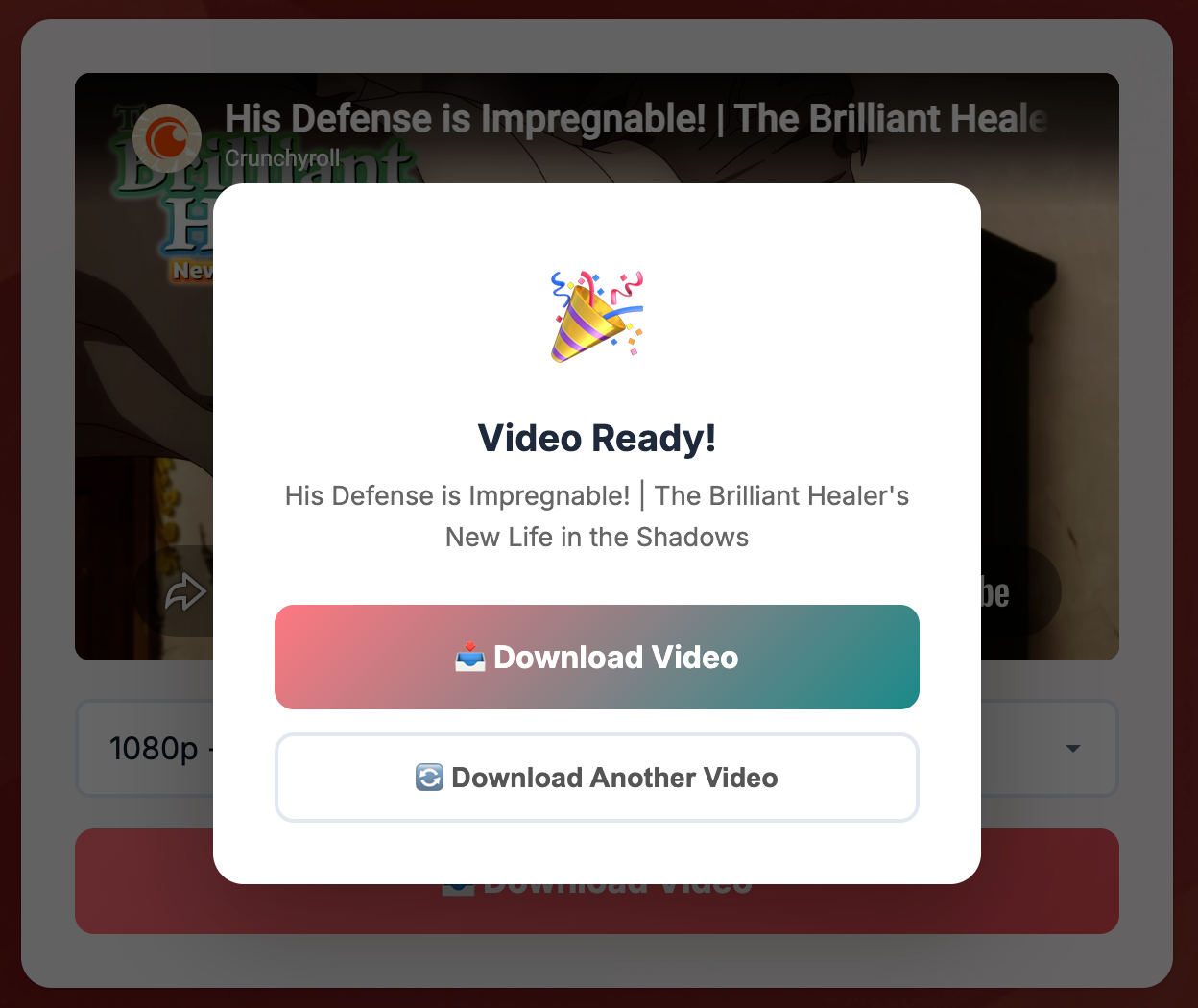
Wait for the progress bar to finish. Once processing is complete, a popup will appear with the video title and two options: click "Download Video" to save the file to your device, or click "Download Another Video" to go back and download a different video.

Step 3: Video ready popup with Download Video and Download Another Video buttons

Supported Video Qualities

360p Smaller file size
480p Standard quality
720p HD quality
1080p Full HD (Best)

Tips for Best Results

Use the Full URL

Copy the complete YouTube video URL from your browser's address bar for best results. Short links (youtu.be) also work.

Choose the Right Quality

Pick 1080p for the best viewing experience on large screens. Choose 360p or 480p for smaller files and faster downloads.

Works on All Devices

This downloader works on any device with a browser — desktop, tablet, or mobile phone. No app installation needed.

Ready to Download Your First Video?

Try It Now