You found the 40 seconds you actually need inside a 90 minute video. YouTube will happily give you a link to that moment. It will not give you a file. That gap is why people end up downloading a 2 GB video to keep half a minute of it.
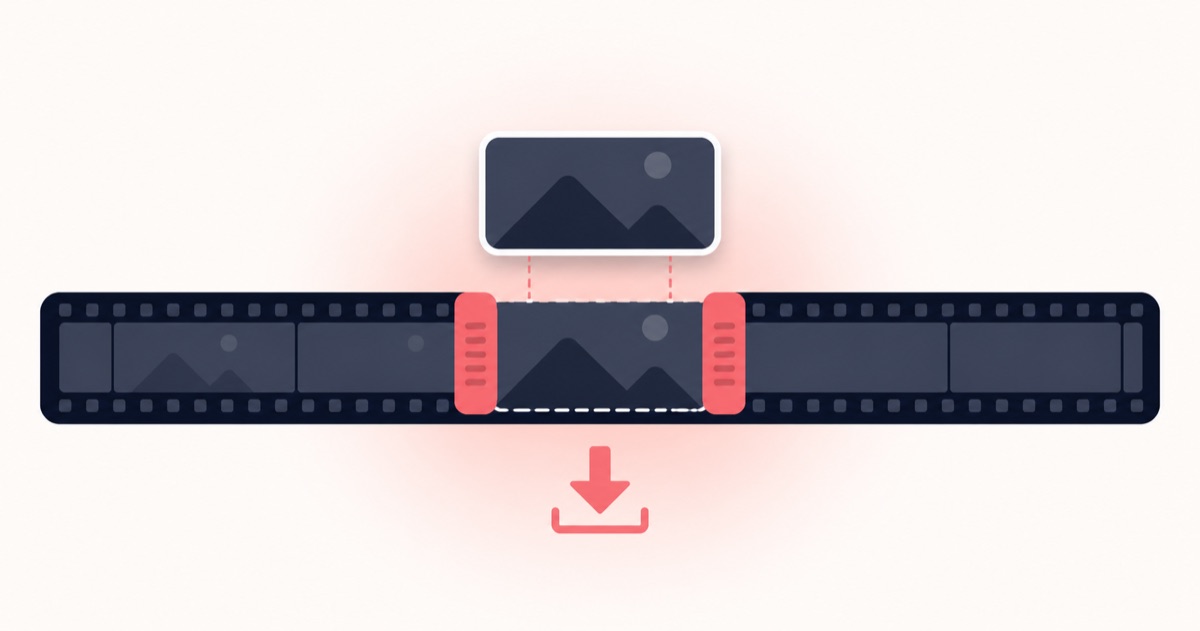
Short answer: paste the video link into a YouTube video cutter, drag the start and end handles to the section you want, choose MP4 or an audio format, and download. Only the trimmed section is produced, so a 40 second clip downloads like a 40 second file, not like the full video. Takes about two minutes and needs no software, no account and no watermark.
The rest of this guide covers what the built in Clip button really does, why your clip sometimes starts half a second early, how to pull several clips out of one video without repeating the whole process, and where the copyright line sits. Everything here has been checked against how the tools actually behave, not how their landing pages describe themselves.
Why YouTube's own Clip button never gives you a file
Under most videos there is a Clip button. Press it, pick a window, name it, share it. It feels like the answer, and then you notice there is nothing to save.
A YouTube Clip is a bookmark with a start and end time attached. Nothing is exported. The player simply replays that window of the original upload, and if the uploader deletes the video, the clip dies with it. The window also has to sit between 5 and 60 seconds, which rules out most tutorial segments, an entire song, or a full answer in an interview.
| What you want | YouTube Clip | YouTube video cutter |
|---|---|---|
| Produces a real file | No, a link only | Yes, MP4 or audio |
| Length limit | 5 to 60 seconds | Whatever range you set |
| Works offline afterwards | No | Yes |
| Survives if the video is removed | No | Yes, you hold the file |
| Can drop into an editor or a Reel | No | Yes |
| Audio only version | No | Yes, MP3 and others |
Clips are built for sharing inside YouTube. The moment you need the footage anywhere else, in a slide deck, a Premiere timeline, a WhatsApp reply, a phone with patchy signal, you need an actual file.
The slow way most people try first
The usual routine looks like this. Download the whole video. Open an editor. Wait for it to load a file that is mostly footage you will throw away. Drag two markers. Export. Wait again. Delete the original.
Four problems with that, and they compound on a laptop or a phone:
- Bandwidth. A 45 minute video at 1080p is often 1.5 GB or more. You are moving all of it for a fragment.
- Export time. Most desktop editors re-encode the whole timeline, so a short clip still costs you a full render.
- Disk churn. The source, the project file and the export all sit there until you clean up.
- Phones. On mobile this route barely works at all.
Cutting server side flips the order. The trim happens first, and the only thing that reaches your device is the piece you asked for.
How to cut and download a part of a YouTube video in 4 steps
- Copy the video linkTake it from the browser address bar, or use Share then Copy link in the mobile app. A youtu.be short link works the same as a full youtube.com URL.
- Paste it into the cutter and load the videoThe YouTube video cutter on the homepage fetches the video and shows a timeline with two handles.
- Set your start and end pointDrag the handles, or type exact timestamps if you already know them, for example 12:04 to 12:47. Typing beats dragging when you need precision.
- Pick a format, then press Download ClipsMP4 keeps the picture. The audio formats give you sound only. Download Clips returns the trimmed section, while Full Download next to it hands over the entire video if that is what you wanted after all.
Worth knowing: the quality list is built from what that specific upload carries. If the creator only published in 720p, no tool on the internet can hand you a 1080p clip of it. Anything promising an upgrade is upscaling, which invents pixels and usually looks soft.
Picking the right format for where the clip is going
Format is not a matter of taste, it depends on the destination. Choosing badly means a second conversion later, and every extra conversion costs a little quality.
| Where the clip is going | Format | Why |
|---|---|---|
| Shorts, Reels, TikTok | MP4, highest quality available | Every platform re-compresses on upload, so hand it the cleanest source you can |
| Slide deck or lesson | MP4 at 720p | Plays anywhere, keeps the file small enough to email or embed |
| Podcast or audio quote | MP3 or M4A | No point carrying video you will never show |
| Sampling or audio editing | WAV or FLAC | Lossless, so repeated edits do not degrade the sound |
| Sending over chat | MP4 at 480p or 720p | Messaging apps compress hard past a size limit anyway |
If it is only the sound you are after, the dedicated YouTube to MP3 converter skips the video handling entirely.
Why your clip sometimes starts a moment early
This one confuses people, and almost no guide explains it, so here it is.
Video is not stored as a flat run of individual pictures. Most frames only describe what changed since the last full frame. Those full frames are keyframes, and depending on the encoder they land every two to ten seconds. A cut that copies the existing stream, which is the fast and quality preserving way to cut, has to start on a keyframe, because starting anywhere else leaves the decoder with changes and nothing to apply them to.
So a tool has two options. Snap back to the nearest keyframe, which is instant but can add a second or two of lead in. Or re-encode the opening segment so the cut lands exactly where you asked, which is accurate but slower.
Practical fixes:
- Set the start point a fraction after the moment you want. A little air at the front is easy to trim later, a missing first syllable is not.
- For dialogue, start on the silence before the line, not on the first word.
- Do not judge accuracy by the preview alone. Play the downloaded file before you build anything on top of it.
Every browser based cutter deals with this, whatever the marketing says. Frame exact cutting on a source you do not control is a re-encode, and a re-encode is not free.
Pulling several clips out of one video
Highlight reels, lecture summaries and compilations all share the same problem. You need six moments from one two hour video, and doing the whole cycle six times means fetching the same source six times.
The Multi-Clip tab handles that in one pass. Add each range, then cut them together. It is a premium feature because the work on the server side scales with the number of ranges, and the pricing page lists what else is included. For a single clip you never need it.
Try it on the video you already have open
Paste the link, drag two handles, download the section. No install, no account, no watermark on the result.
Cut a YouTube video nowCutting a video that is already on your computer
Sometimes the source is not a link. It is a screen recording, a file a client sent, or footage from a camera. The video cutter for uploads takes those directly, and two limits are worth knowing before you start:
- 45 minutes maximum per upload, checked in the browser before anything transfers, so an over length file fails immediately instead of after a long wait.
- Short retention. Finished files are deleted after 10 minutes on the free tier and 45 minutes on premium. Download promptly. This is deliberate, since nobody wants their footage sitting on a server.
MP4, MOV and WEBM are the dependable inputs. Multiple named clips per upload work here too.
Five mistakes that ruin a clip
- Trusting the preview player for timing. Preview playback drifts. Check the downloaded file.
- Cutting flush against the first word. Leave a quarter second of air at both ends. Editors trim, they cannot invent.
- Picking a resolution higher than the source. The list shows what the upload carries. Nothing above it is real.
- Converting twice. MP4 to MOV to MP4 loses a little each time. Choose the destination format at the cut.
- Vertical clips cut from horizontal video. Cutting sets duration, not shape. Cropping to 9:16 is a separate step, so plan for it if the clip is heading to Shorts or Reels.
Where the copyright line actually sits
Most articles bury this in one nervous sentence. It deserves better, because the answer changes with what you do next.
Comfortable ground: your own uploads, videos published under a Creative Commons licence, material your employer or client owns, and anything where the rights holder has given you permission.
Grey ground: a short excerpt used for commentary, criticism, review, news or teaching. Fair use in the United States and fair dealing elsewhere can cover this, but both are defences argued case by case, not permissions granted in advance. Length, purpose and whether your use competes with the original all matter.
Clearly not fine: lifting someone else's footage and reposting it as your own, monetising it, or rebuilding their video out of clips. That is where takedowns and channel strikes come from, and no tool protects you from it.
One habit worth keeping: note the source URL and timestamp next to every clip you save. Six months later, when someone asks where a piece of footage came from, you will have an answer.
Frequently asked questions
Can I download a YouTube Clip as an MP4?
Not through YouTube. A Clip is a link that replays a window of the original video, and no file is ever created. Take the source video link instead, put it in a cutter, and set the same start and end times. You get the same section as a file you own.
How long a clip can I cut?
There is no 60 second ceiling on a cutter. Eight seconds or forty minutes both work. The 5 to 60 second rule belongs to YouTube's own Clip feature, which is what sends most people looking for another option in the first place.
Does cutting a YouTube video reduce the quality?
The clip is capped by the source, so a 720p upload cannot yield a 1080p clip. Trimming itself costs very little when the tool copies the existing stream, and one light re-encode around the cut point is normal and hard to see. Repeated conversions afterwards do far more damage than the cut.
Why does my clip start half a second before the moment I picked?
Keyframes. A stream copying cut has to begin on one, so the start can snap back to the nearest keyframe, which sits a few seconds apart. Nudge the start point a fraction later and it lands where you want.
Can I cut a YouTube video on my phone?
Yes, and no app is needed. Copy the link from the YouTube app Share sheet, open the cutter in your mobile browser, drag the handles and download. The file lands in Files on iPhone or Downloads on Android.
Can I take just the audio from one section?
Yes. Set the range as usual, then switch the format from MP4 to MP3, M4A, WAV, FLAC or one of the other audio options before downloading. Useful for quotes, samples and podcast inserts.
Will there be a watermark on my clip?
No. The clip is a trimmed copy of the source, and nothing is stamped on it. Free trials elsewhere that brand your export are usually converting your file through their own editor.
Do I need an account?
Not for a single clip. Paste, trim, download. An account only matters for premium extras such as cutting several ranges from one video in a single pass.
Is it legal to cut and download part of a YouTube video?
It depends on the video and what you do with the clip. Your own content and licensed material are fine. Short excerpts for commentary or teaching sit in a grey area that varies by country. Reposting someone else's footage as your own is not fine anywhere.
The short version
YouTube's Clip button shares a moment. It does not save one. When you need the file, the fastest route is to trim before you download, not after: paste the link, set two timestamps, pick the format the clip is heading into, and take just that section. Leave a little air at the edges, keep the source link with your notes, and check the downloaded file before you build anything on top of it.