Search for this and half the results tell you to open the Photos app and drag the yellow handles. That advice is fine, and it answers a different question. Photos trims a video that is already sitting on your phone. A YouTube video is not on your phone. It is a stream, and there is nothing for Photos to open until a file exists.
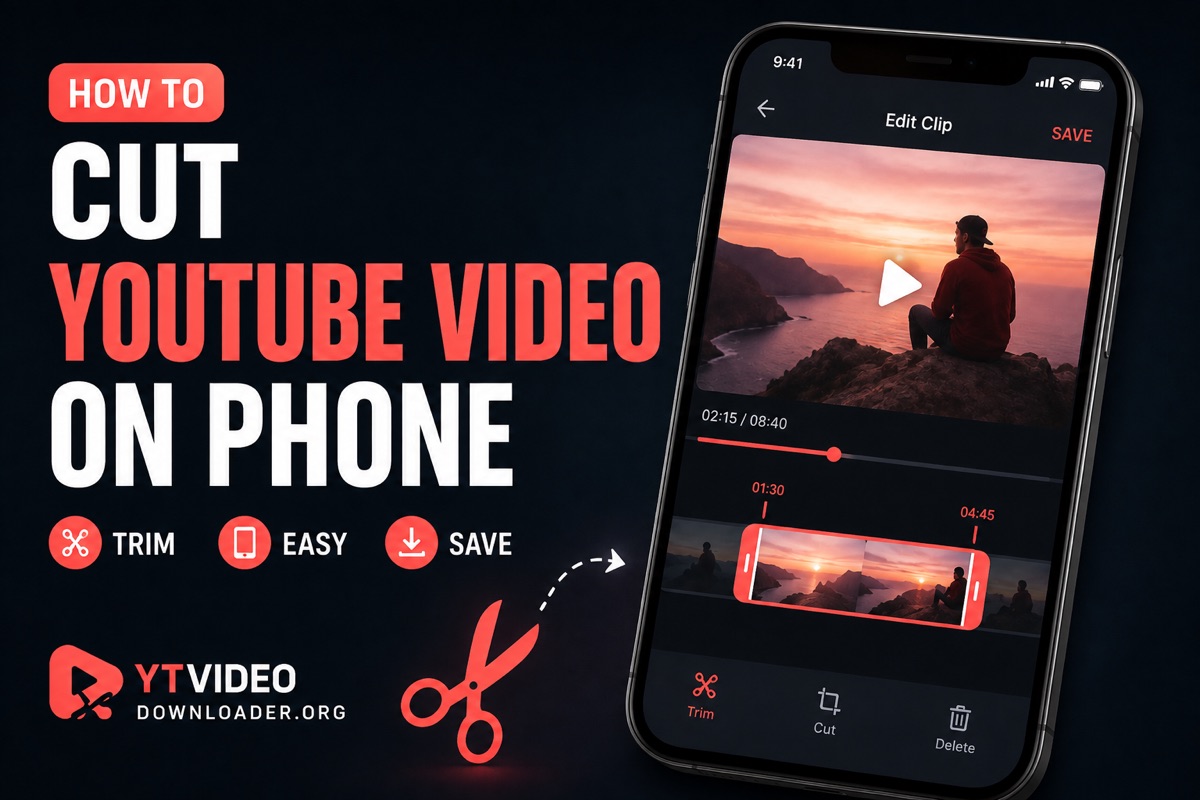
Short answer: copy the video link from the YouTube app, open a browser based cutter in Safari or Chrome, paste it, type the start and end times, and download that section. No app, no account. On an iPhone the clip lands in Files under Downloads, not in Photos, which is the single most common reason people think it failed.
This guide covers both situations, because the search results mix them up constantly: cutting a section out of a video that lives on YouTube, and trimming a video file already on your phone. They need different tools and the steps are not interchangeable.
Work out which job you actually have
| What you have | What to use | Why |
|---|---|---|
| A YouTube link or a video you are watching in the app | A browser based YouTube cutter | Nothing is on your phone yet, so a link has to be the starting point |
| A video already in your camera roll | Photos on iPhone, Google Photos or Gallery on Android | Free, instant, and it never uploads anything |
| A file in Files or Downloads that Photos will not open | An upload based cutter in the browser | Handles formats the built in editors refuse, and cuts several sections in one go |
| Your own YouTube upload | YouTube Studio on desktop | You can edit the published video itself rather than making a copy |
The rest of this article is mostly about the first row, because that is the one nobody explains properly on mobile.
Cutting a section out of a YouTube video, step by step
- Copy the link in the YouTube app
Tap Share under the video, then Copy link. You get a
youtu.beaddress, which works anywhere a full watch link works. If you are watching a Short, the same Share and Copy link gives you a/shorts/address, and that is fine too. - Open the cutter in your browser Safari on iPhone, Chrome on Android, either is fine. Paste the link into the box on the YouTube video cutter and wait a moment for the preview player to appear with the video's real length.
- Type the times, do not drag This is the whole trick on a phone. The handles work, but your thumb covers about ten pixels of slider, and on a 40 minute video ten pixels can be a minute and a half. The time fields underneath take hours, minutes and seconds as separate numbers. Type 4 and 08 and you are at 4:08, exactly, first try.
- Choose the format MP4 for video. MP3, M4A or one of the other audio options if you only want the sound, which is the right choice for a quote, a lyric or a chunk of a podcast, and it downloads far faster on mobile data.
- Tap download and confirm Safari asks for permission the first time you download in a session. Miss that prompt and nothing appears to happen, which is where most "it did not work on my iPhone" reports come from. Chrome on Android tends to just get on with it and drop a notification.
- Put it where you need it On iPhone: open Files, go to Downloads, long press the clip, tap Share, then Save Video to move it into Photos. On Android: it is in the Downloads folder, and most gallery apps will show it after their next scan.
Save it while it is there. Finished clips do not sit on the server. They are deleted after 10 minutes on the free tier and 45 minutes with premium. If you tap download, wander off, and come back to a dead link, that is why. Nothing was lost, the clip just has to be cut again, which takes seconds.
Why the time fields beat the handles
Touch precision is the real problem with every mobile video tool, and it is rarely mentioned. A slider that spans a 320 pixel screen and represents an hour of video gives you about eleven seconds per pixel. A fingertip is not a pixel. Even a careful drag can be five seconds off, which is the difference between catching the start of a sentence and catching the end of the previous one.
Typing removes that entirely. Watch the part you want in the YouTube app first, note the timestamp on the player, then type those numbers into the cutter. Two rules make it painless:
- Start one second early. Cuts land on whole seconds, and fast cuts snap to the nearest keyframe before your mark, so a clip can open a beat before you expected. A second of headroom is free insurance against a chopped first word.
- End one second late. Same logic at the other end, and it stops a clip finishing on a half spoken word.
Cut it in your phone browser
Paste the YouTube link, type the start and end, download just that part as MP4 or audio. Free, no app, no account.
Open the cutterWhat the YouTube app itself offers, and where it stops
Before reaching for anything else, it is worth knowing exactly what the three buttons in the app do, because two of them look like they solve this and do not.
Clip. Tap the scissors and you can mark 5 to 60 seconds. What you get back is a link, not a file. It plays on a loop inside the source video's page, it needs a connection, and it disappears if the creator deletes the video. Useful for sending a moment to someone, useless for keeping it. If somebody sent you one of those links and you want the file, read how to download a YouTube Clip, because that address will not load in any cutter.
Download. The one under the video is Premium only, and it saves for offline viewing inside the YouTube app. The file is stored encrypted, it plays nowhere else, and it stops working after 29 days without a connection, as YouTube's own offline viewing page sets out. It is a licence to watch offline rather than a copy you own.
Share, then Copy link. The one that actually matters here. It hands you the address a cutter needs, and it is the first step of every method below.
Editing your own upload is a different door again: the trim tools in YouTube Studio work on the published video, they do not hand you a file, and the editor is desktop territory. On a phone the browser route is simply faster.
Trimming a video that is already on your phone
If the file is in your camera roll, the built in editors are genuinely the best answer and no website beats them.
iPhone: Photos, open the video, Edit, drag the yellow handles at either end, then Done. iOS asks whether to save as a new clip or overwrite the original. Choose the new clip unless you are certain, because overwriting is only reversible while the original stays in Recently Deleted.
Android: Google Photos, open the video, Edit, drag the ends of the filmstrip, Save copy. The wording differs between phone makers, but every Gallery app has the same feature.
Where the built in editors give up: exotic formats, files that came from a camera or a screen recorder in a container Photos does not read, and jobs where you want several separate sections out of one video. That is when an upload based cutter earns its place. It takes files up to two hours long, checks the length in the browser before any data uploads so an over long file fails immediately instead of after ten minutes of waiting, and it can mark several sections and cut them in one pass.
Things that go wrong on mobile, and the actual fix
| What happens | What is really going on | Fix |
|---|---|---|
| Tapped download on iPhone, nothing happened | Safari's permission prompt appeared and was missed or dismissed | Tap download again and accept the prompt, then look in Files under Downloads |
| Clip is not in Photos | Browser downloads never go to Photos on iOS | Files, long press, Share, Save Video |
| The video will not load from the link | Private, members only, age restricted or blocked in your country | No tool can reach those. Check it plays in a signed out browser first |
| The page reloads and loses my times | Mobile browsers drop background tabs to save memory | Stay on the tab while it renders, and keep the phone awake |
| The clip starts a second early | Keyframe alignment, not a bug | Move the start a second later, or accept it, most people never notice |
| Audio only file will not open | Some players ignore unusual audio containers | Choose MP3 or M4A rather than OPUS or OGG when the file is for a phone |
Cutting is not cropping
Worth stating plainly, because people ask for a vertical clip and expect the cutter to produce one. Cutting decides when a clip starts and stops. Cropping decides its shape. A 16:9 YouTube video that you cut stays 16:9, whatever you plan to post it to.
For Shorts, Reels or TikTok the working order is: cut the section first so you are handling a small file, then crop to 9:16 in whichever app you post from, since they all include a crop step and most add captions in the same pass. Doing it the other way round means re-encoding a long video for no reason.
A word on what you cut
A short section for personal use is one thing. Reposting somebody's footage to a public account is another, and Content ID catches it reliably. If it is going anywhere public, ask the creator, or work from Creative Commons material where reuse is already allowed. Your own uploads are always safe ground.
Frequently asked questions
Can I cut a YouTube video on my phone without installing an app?
Yes. A browser based cutter runs in Safari or Chrome on the phone. You paste the video link, set a start and an end, and download that section as a file. Nothing is installed and no account is needed.
Why does the Photos app not help with a YouTube video?
The Photos app trims videos that are already in your camera roll. A YouTube video is not on your phone, it is streamed, so there is nothing for Photos to open until you have downloaded a file first.
Where does the downloaded clip go on an iPhone?
Into the Files app, under Downloads, on iCloud Drive or On My iPhone. It does not appear in Photos automatically. Open Files, long press the clip, tap Share and choose Save Video to move it into your camera roll.
Where does it go on Android?
Chrome saves it in the Downloads folder, and you can open it from the Downloads app or from a file manager. Most gallery and music players scan that folder, so the clip usually shows up there within a minute.
Why is dragging the trim handles so imprecise on a phone?
A thumb covers roughly ten pixels of a slider, and on a long video every pixel can be several seconds. Typing the minutes and seconds into the time fields removes the guesswork completely, which is why those fields exist.
Can I cut a video that is already on my phone?
Yes, upload it to the file cutter instead of pasting a link. Files up to two hours long are accepted, the length is checked in the browser before anything uploads, and you can mark several sections in one pass.
Does cutting turn the clip into a vertical Short?
No. Cutting changes when the clip starts and stops, not its shape. A 16:9 source stays 16:9. If you need a 9:16 crop for Shorts or Reels, cut first, then crop in whatever app you post from.
Will the download eat my data allowance?
Only the section you cut is sent to your phone, so a 30 second clip is a fraction of the full video. Choosing an audio format instead of MP4 cuts it further, often to under a megabyte a minute.
How long does the file stay available to download?
Not long, by design. Finished clips are deleted from the server after 10 minutes on the free tier and 45 minutes with premium. Save it to your phone when the download button appears rather than leaving the tab for later.
The short version
Photos trims what you already have. For anything still on YouTube, copy the link, open a cutter in the phone browser, type the start and end instead of dragging, and download. On iPhone look in Files under Downloads, then Share and Save Video if you want it in your camera roll. Give yourself a second of headroom at each end, save the file promptly because clips are deleted from the server within minutes, and remember that cutting never changes the shape of the frame. If the moment you want came to you as a clip link, start with how to download a YouTube Clip instead, because that link will not load in any cutter.